D365 Tiles · Admin
Creating Tiles
Being updated. This article was recovered from the old Help Center. Its steps and screenshots show the older Dynamics 365 interface.
Tiles are the content that will populate on the Tile Sets displayed using the solution.
What are Tiles?
Section titled “What are Tiles?”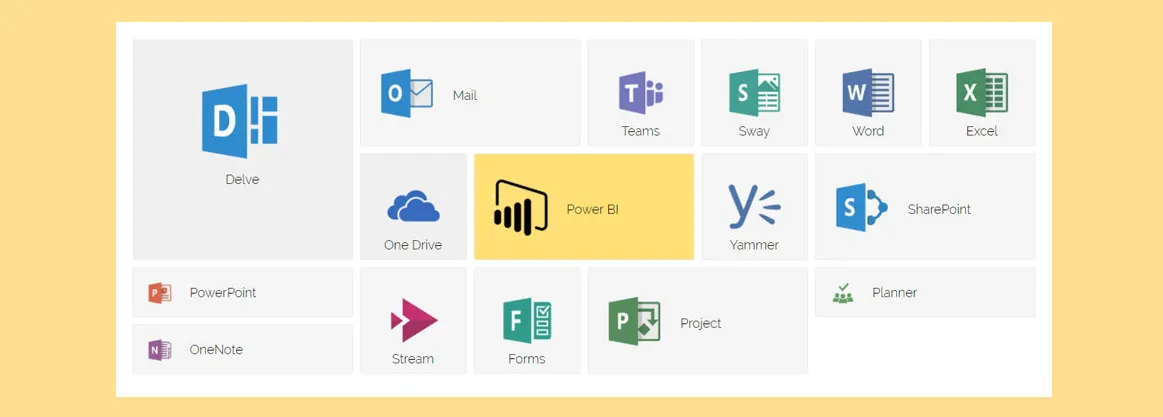
- Tiles are the physical buttons that have size, color, text and links
- You will be creating Tile Sets that each have many Tiles within
- When you click on a Tile it will pop open a new window (or tab depending on your browser settings)
Navigation
Section titled “Navigation”- Go to SETTINGS > D365 Tile Sets
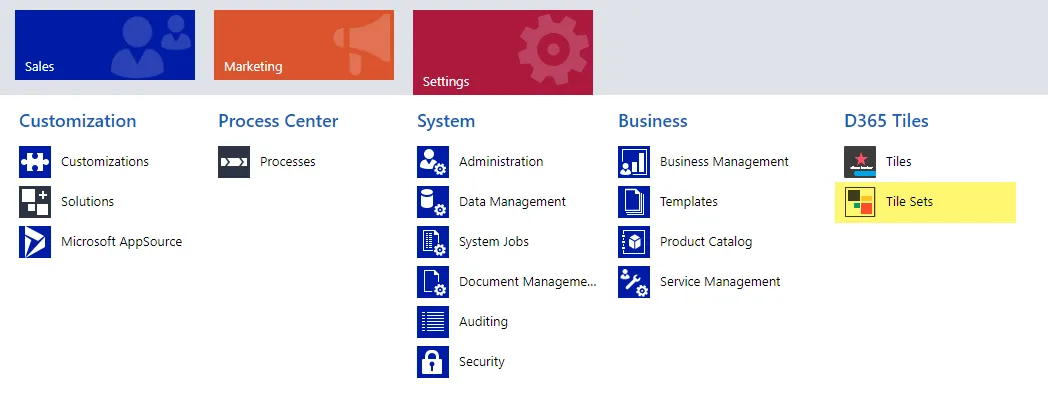
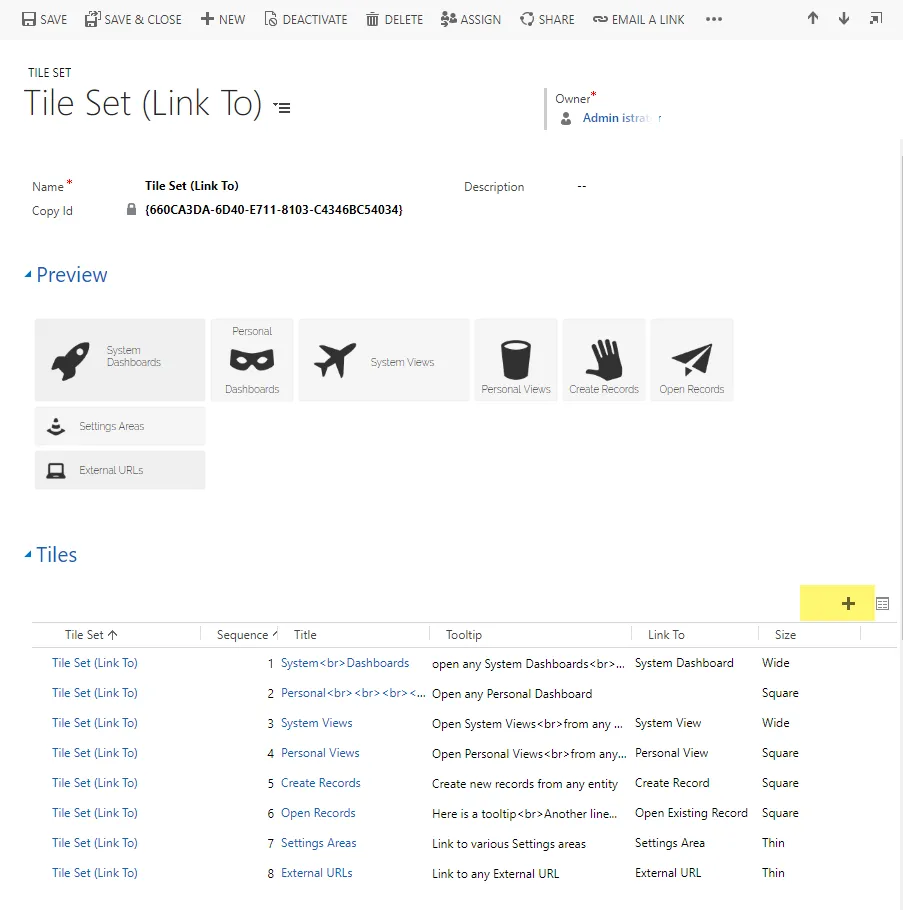
- Open the Tile Set you wish to add to or edit
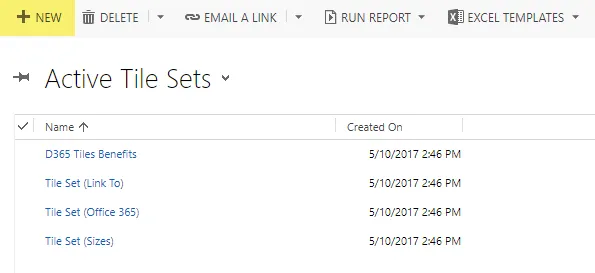
See also: For more info please see the Creating Tile Sets article
- Click the
 button on the “Tiles” tab grid to add a new Tile
Tile Parameters
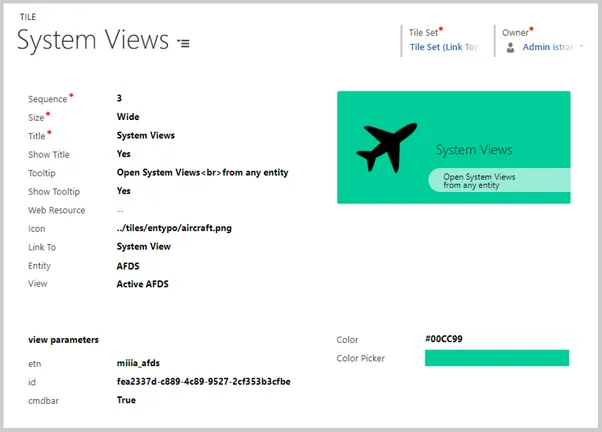
Section titled “Tile Parameters”Tiles themselves are flexible in nature, while keeping it simple to produce useful results fast. There is a set of parameters to customize each Tile.
- Sequence In what order the Tiles will display on your Tile Set left to right
- Title The title that will be displayed
- Tooltip The tooltip that will be displayed when hovered over
- Size Square, Thin, Wide, Large
- Color Color when hovered over (Hex Color picker available)
- Icon Link to the Web Resource image for your icon
- Link To Dashboard, View, Create A Record, Open Existing Record, External URL