
D365 Checklists · Everyone
Understanding Checklists
Being updated. This article was recovered from the old Help Center. Its steps and screenshots show the older Dynamics 365 interface.
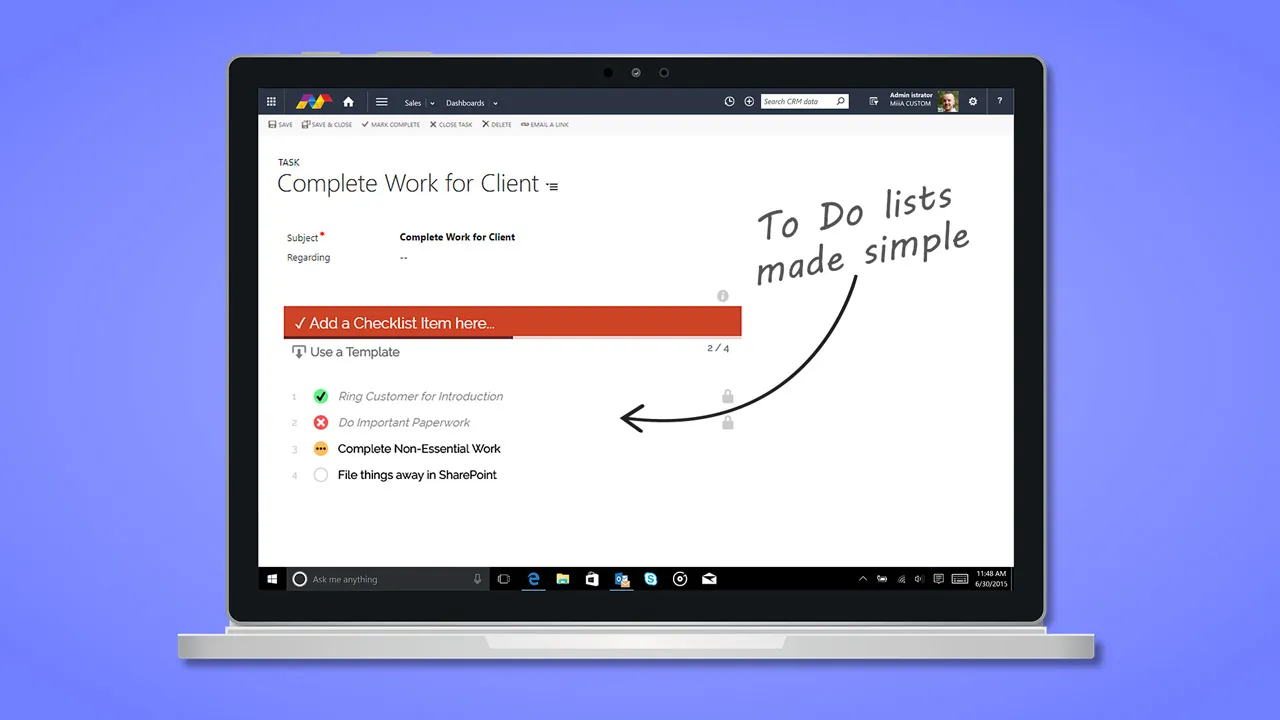
Enhance the usefulness of Dynamics 365 records with multi-function D365 Checklists. Make life simple again with this easy yet powerful add-on.

Key Features
Section titled “Key Features”
- Add Checklists to Dynamics 365 records (System or Custom entities)
- Checklists behave like normal Dynamics 365 form elements. Edits make the form “dirty” immediately, using Save, Save & Close or Mark Complete commits changes.
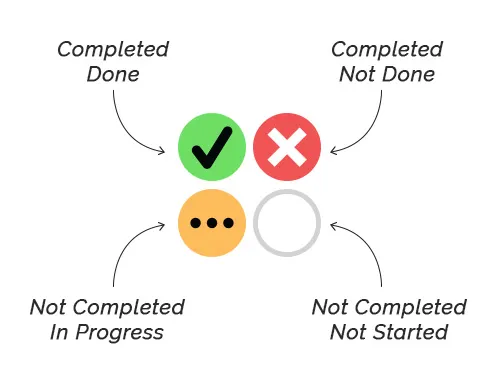
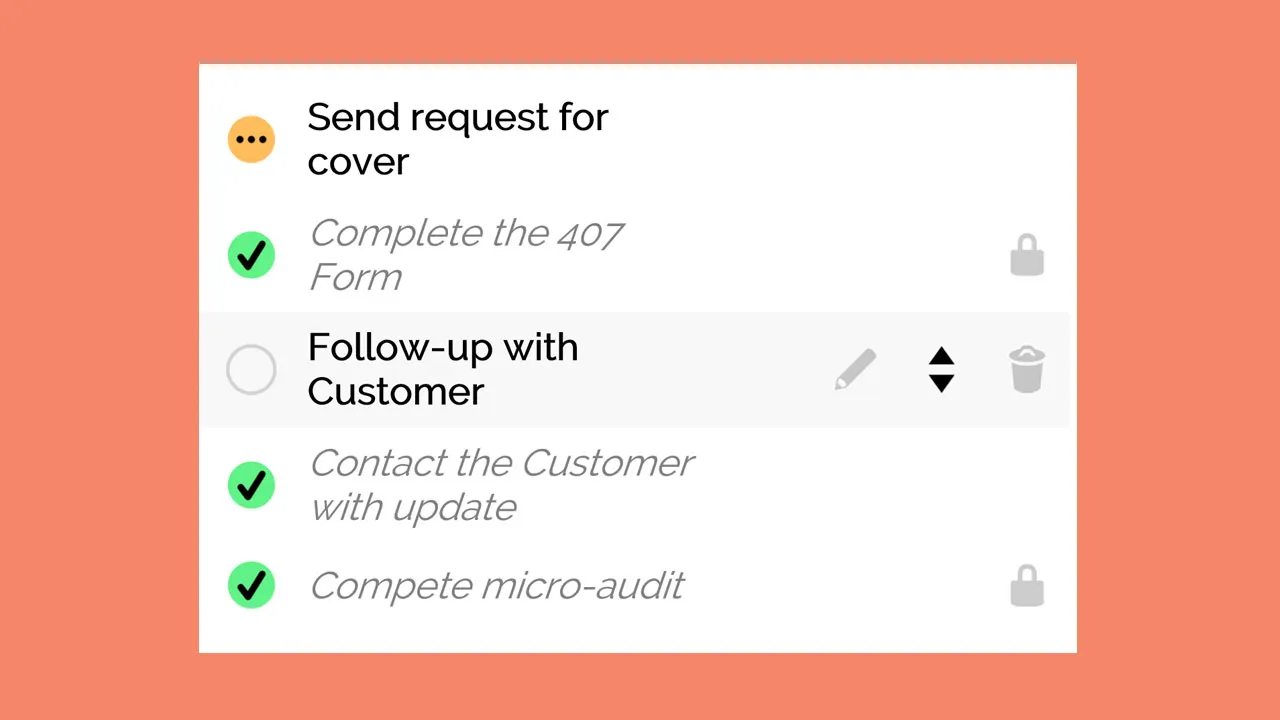
- Statuses for each Checklist Item are:
- Blank (not started)
- Tick (completed)
- Cross (not done)
- Partial (in progress)
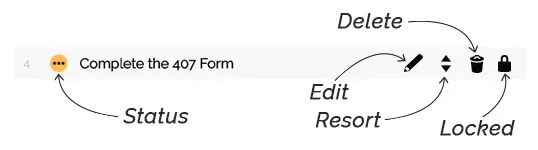
- Edit existing items or Reset already completed items to start fresh
- Sort items with a simple drag-n-drop
- Delete existing items
- The User’s name and date/time is recorded when an item is modified
⚠ Image lost:
D365-Checklists-ModifiedBy-Popup.jpg
- List progress is displayed, and when completed are visually represented
⚠ Image lost:
D365-Checklists---Progress-Bar.jpg